
Introduction
For more than a decade, I have been using Apache Open Office, which is totally FREE, for my Word and Excel needs, even when I was still working as a Salaryman.
After I fired my boss and become a bum, I mainly use Open Office to write letters (very seldom) and create spreadsheets to keep track of whatever I need to keep track.
Open Office can also open Microsoft Office files, but nowadays Google Docs can also open Microsoft Office files; so reading other’s people Word or Excel files are very convenient today with our PC or Smartphone.
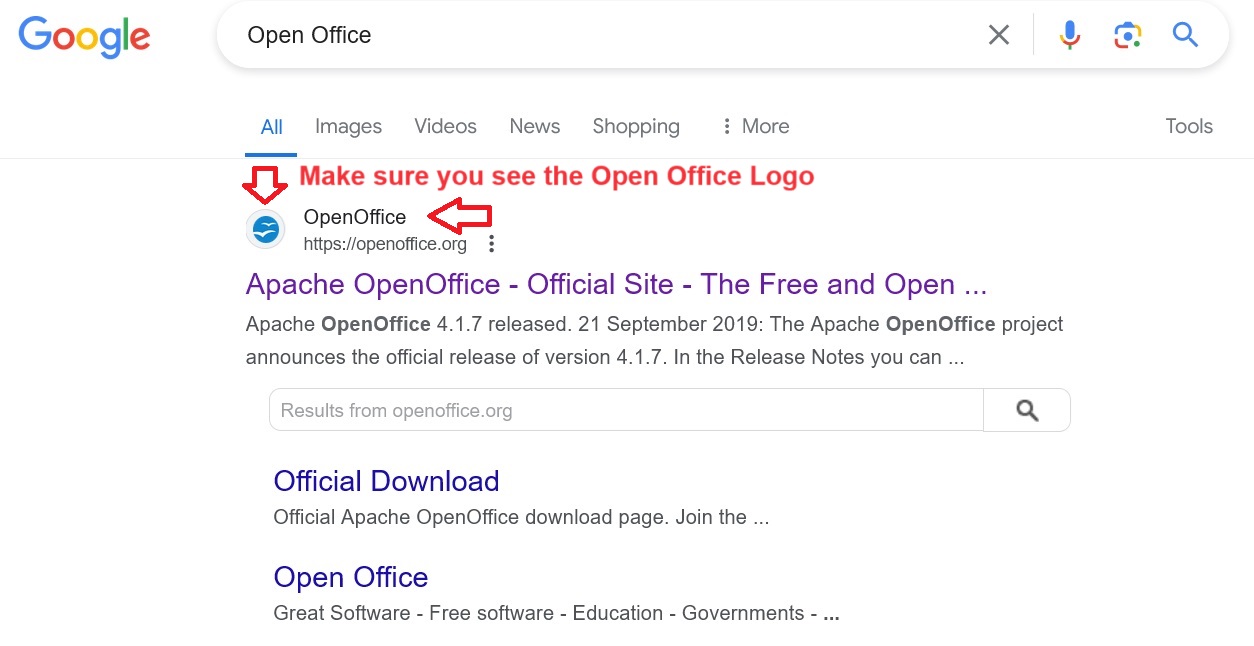
Anyway, if you have a PC without Microsoft Office 365, you can google Open Office and download it for FREE, see below:
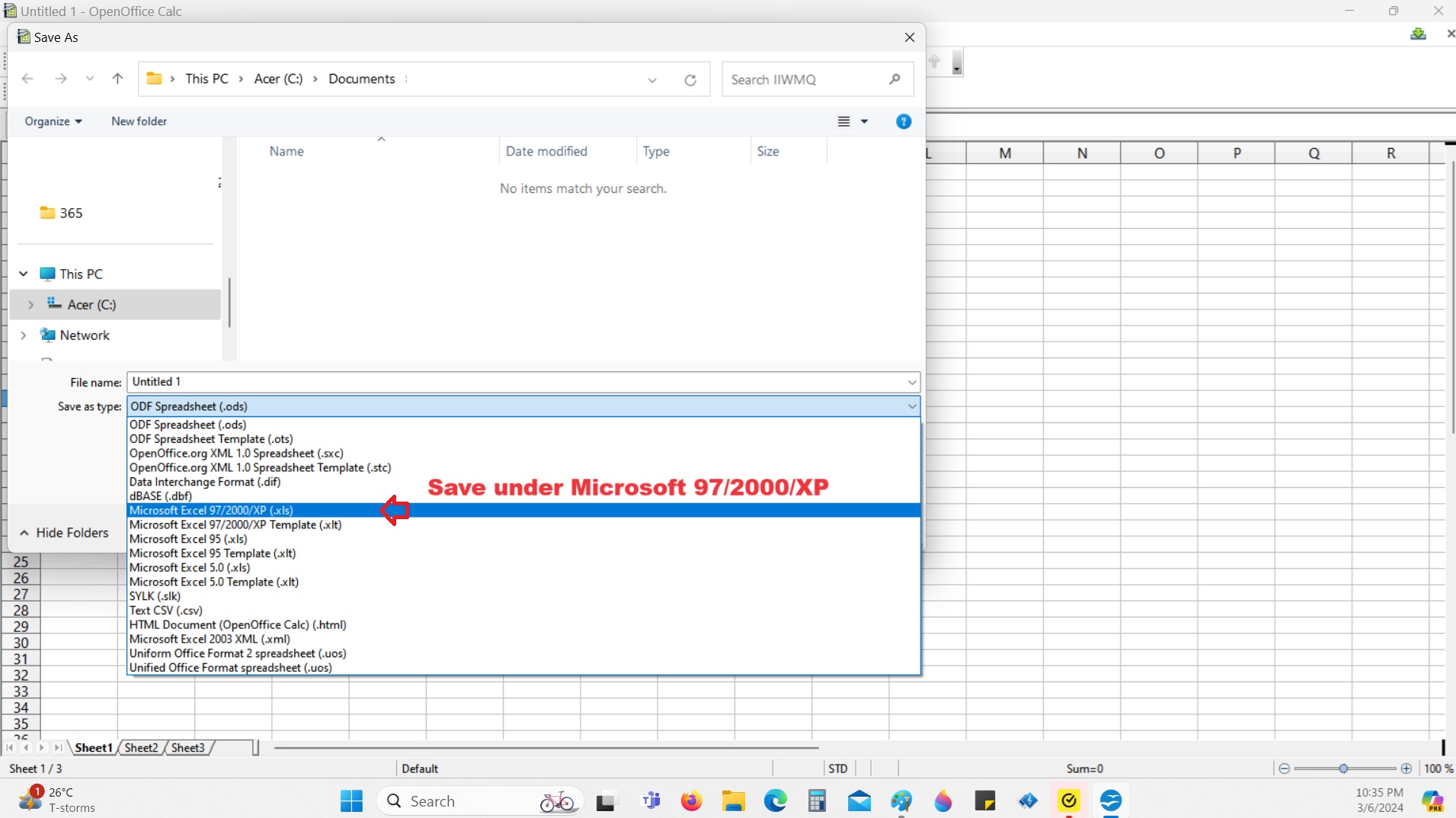
If you need to send a file to another person who only uses Microsoft Office, you can create a Word or Excel or even Power Point file in Open Office and save it under Windows 97/2000/XP which will then be able to be read by Microsoft Word or Excel or Power Point.
FREE Microsoft 365 For your PC/Notebook
If you only occasionally need to use Microsoft Word or Excel, did you know that you can get Microsoft Office for FREE? Yes FREE!
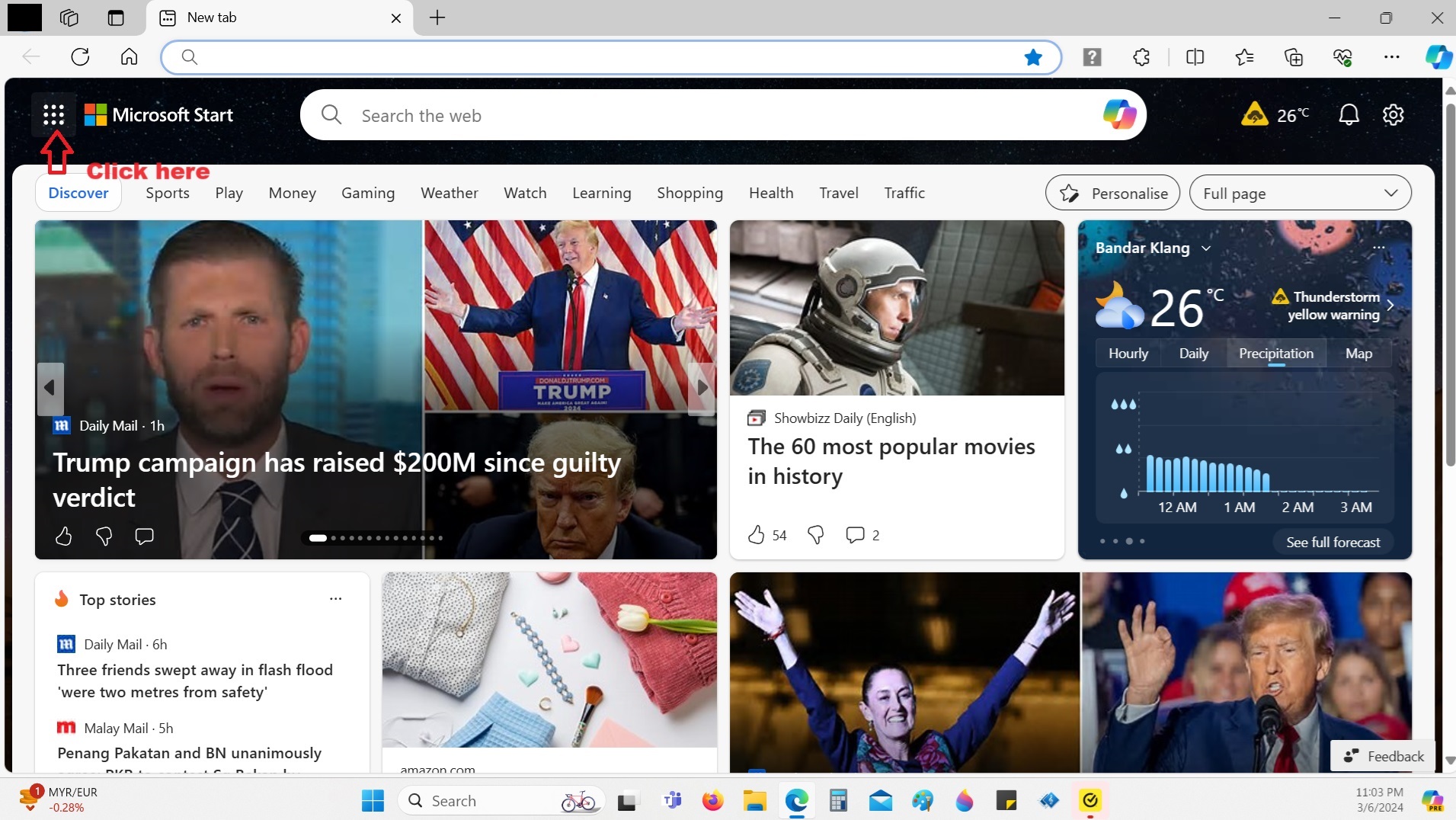
Step 1 – Go to your Edge Browser and click on the Upper Left as shown below:
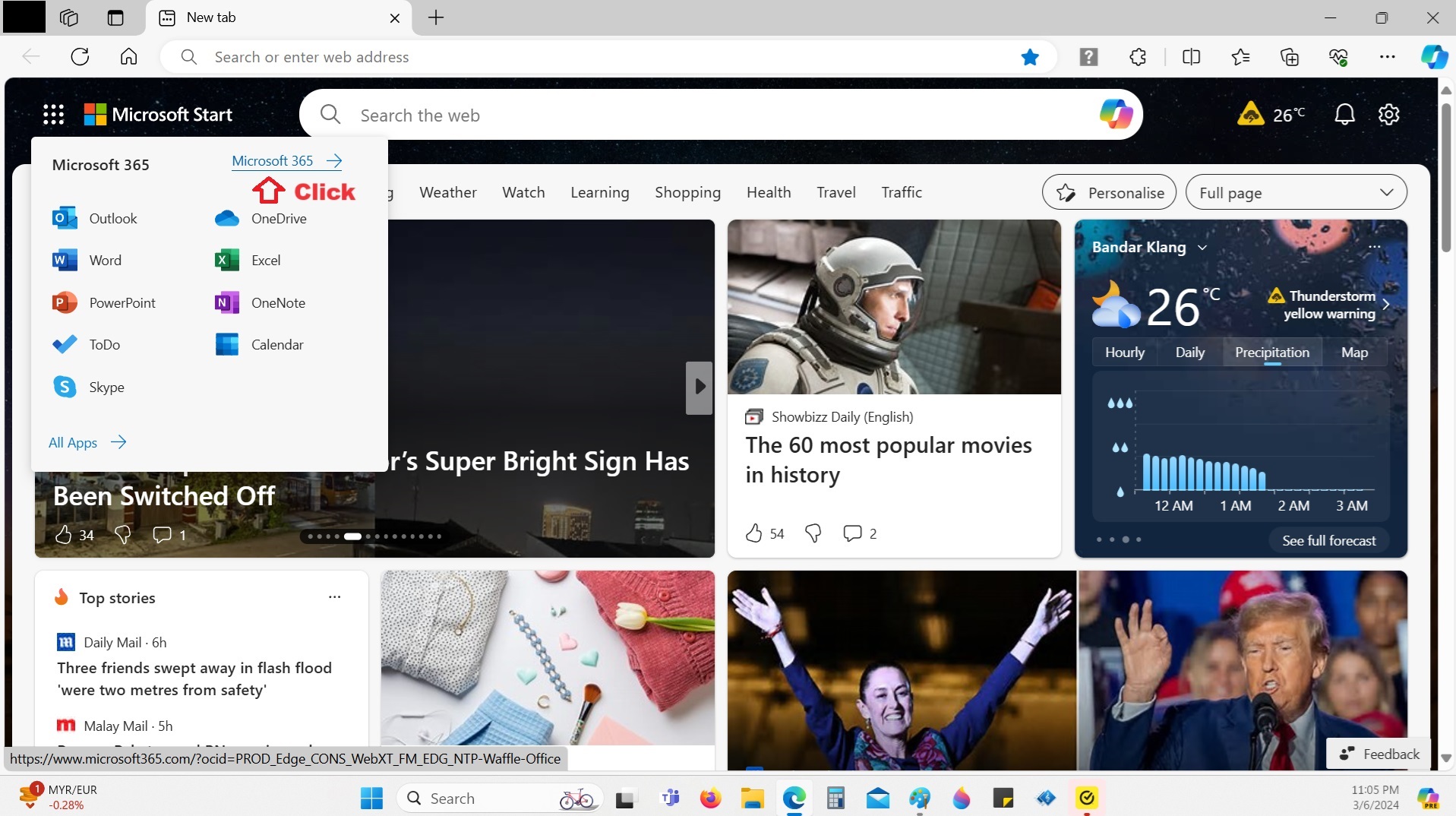
Step 2 – Click on Microsoft 365:
Step 3 – If you have a Microsoft Account, all you need to do is click on Sign In; else you will need to create a Microsoft Account.

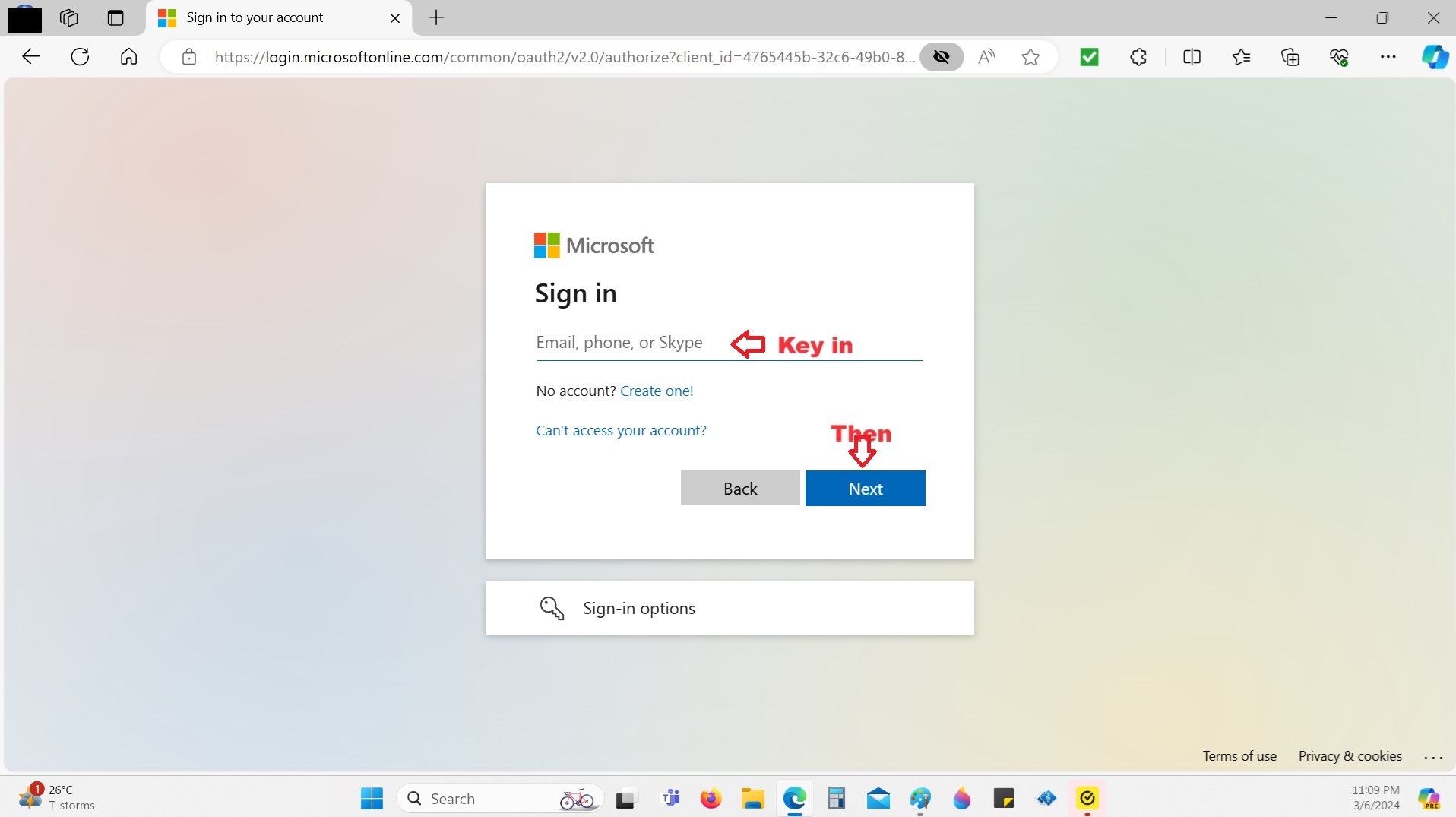
Step 4 – Key in your Microsoft Account (e.g. email) and click Next:
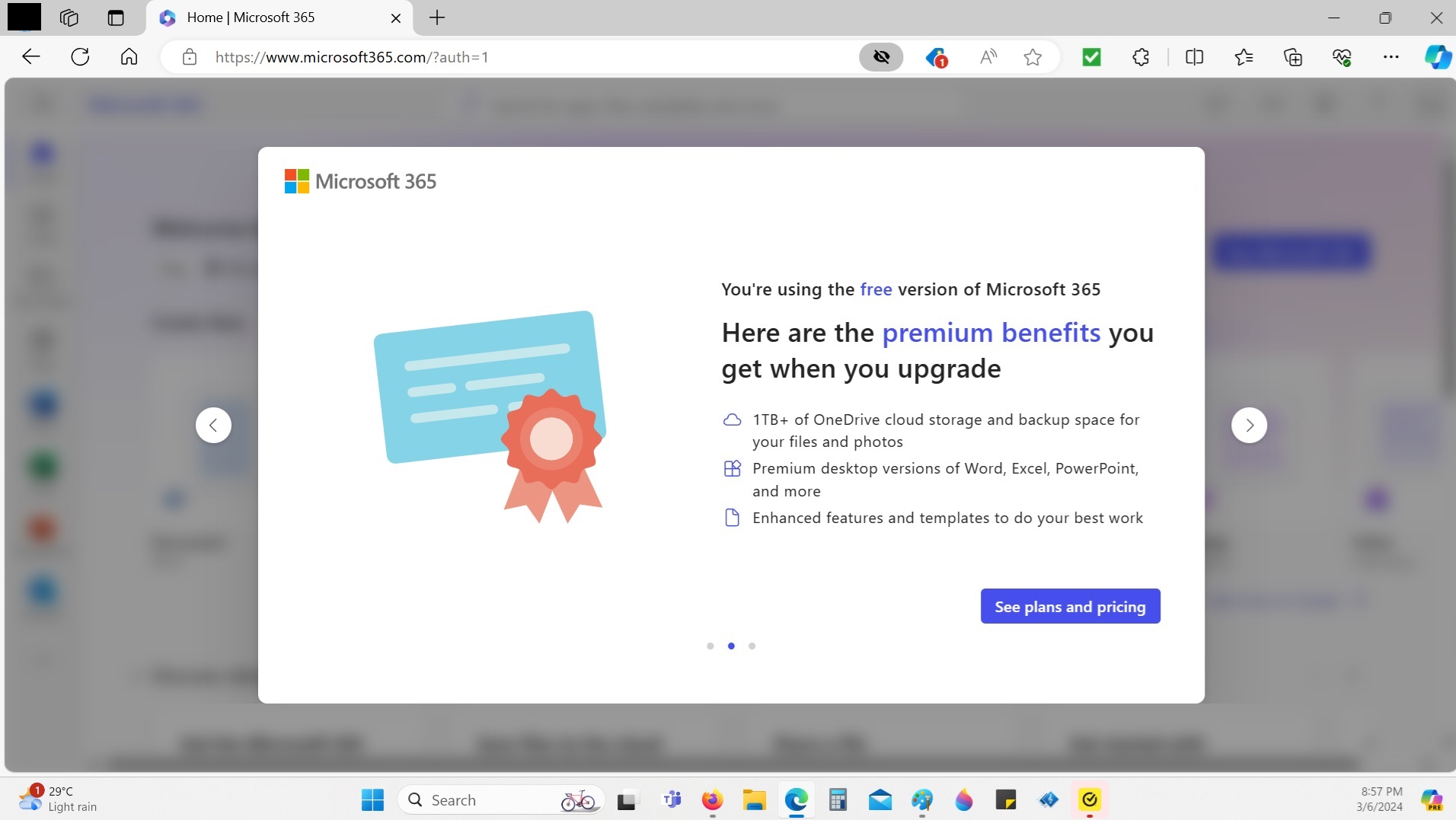
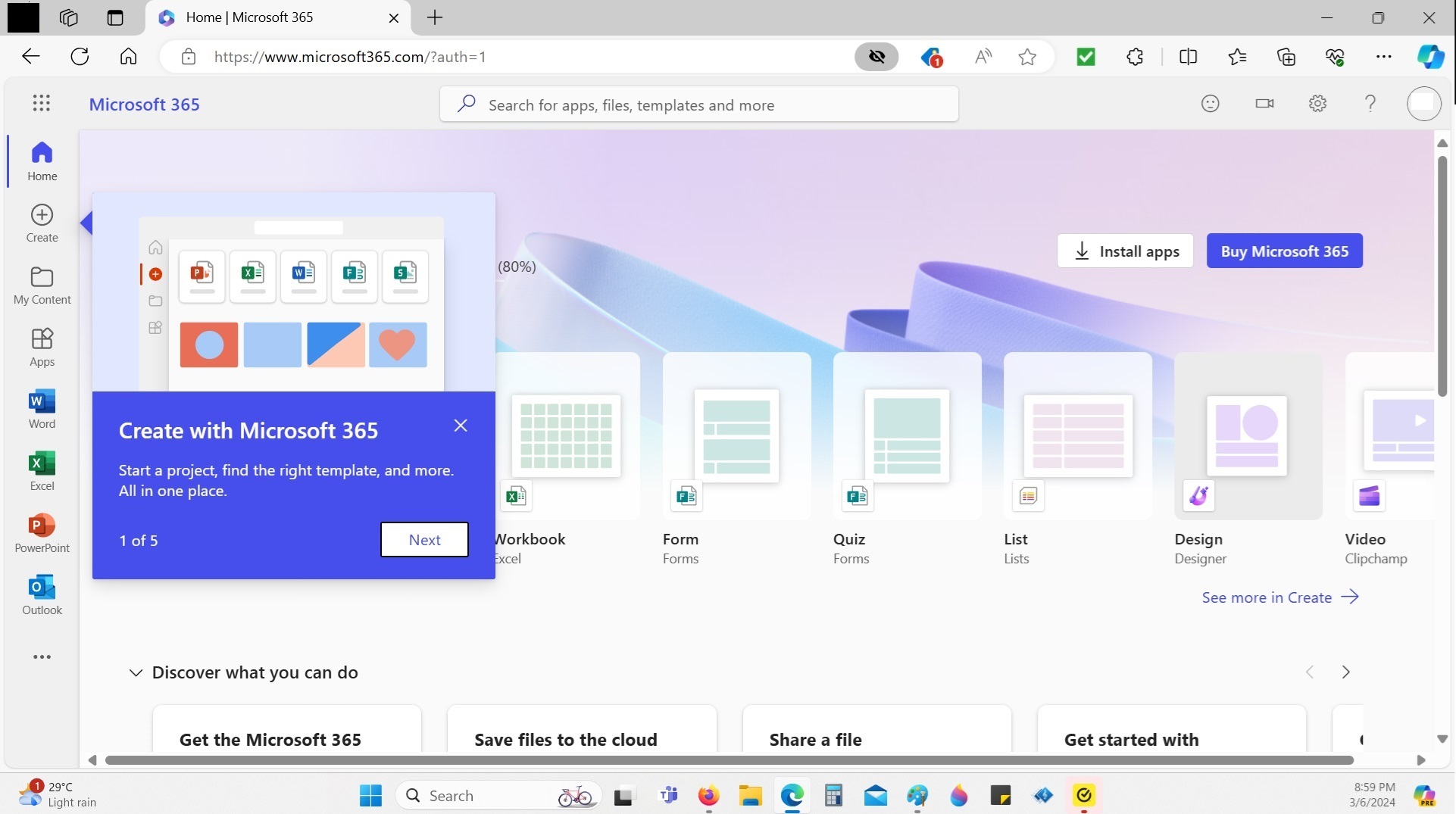
Step 5 – And you are in Microsoft 365:

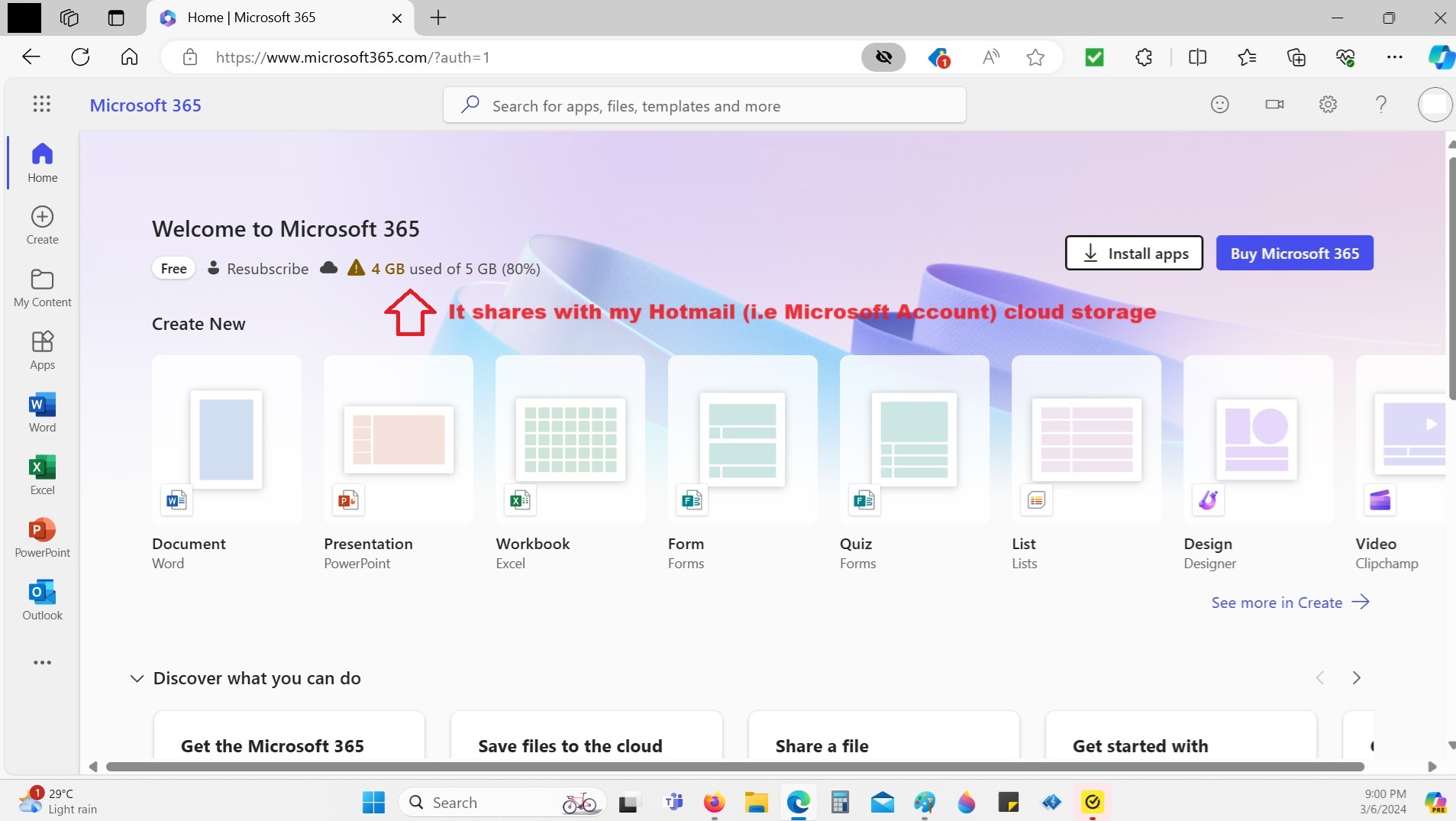
From the above image, you will note that I have only 5GB Cloud Storage and I have used up 4GB (mainly with my Hotmail).
Microsoft 365 on default uses cloud storage but I will show you later how you can save a file in your computer SSD/hard drive.
Anyway. I went to Manage Storage and deleted a few video files at my One Drive so that I have 2GB Free.
Step 6 – Example select Excel:

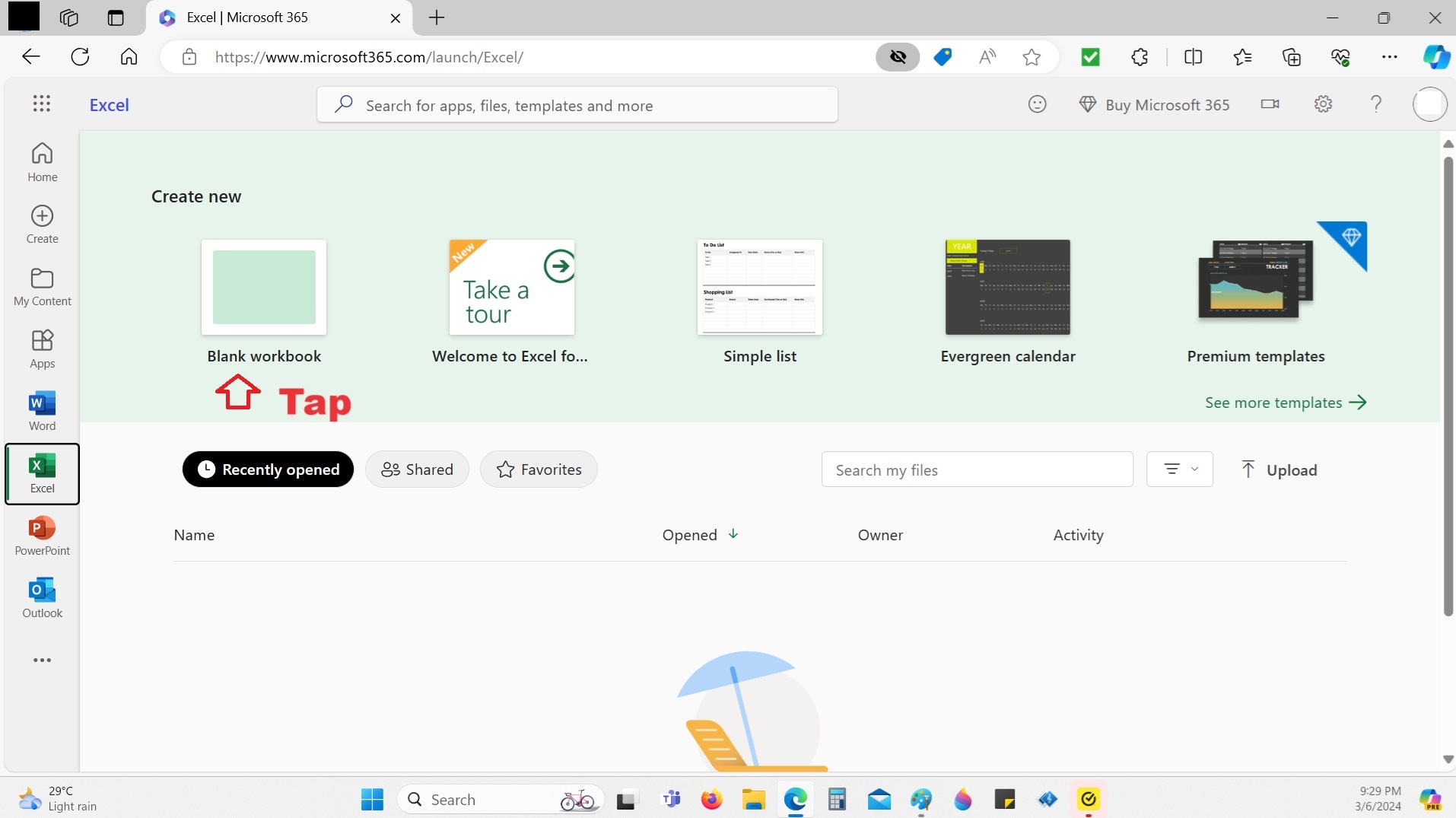
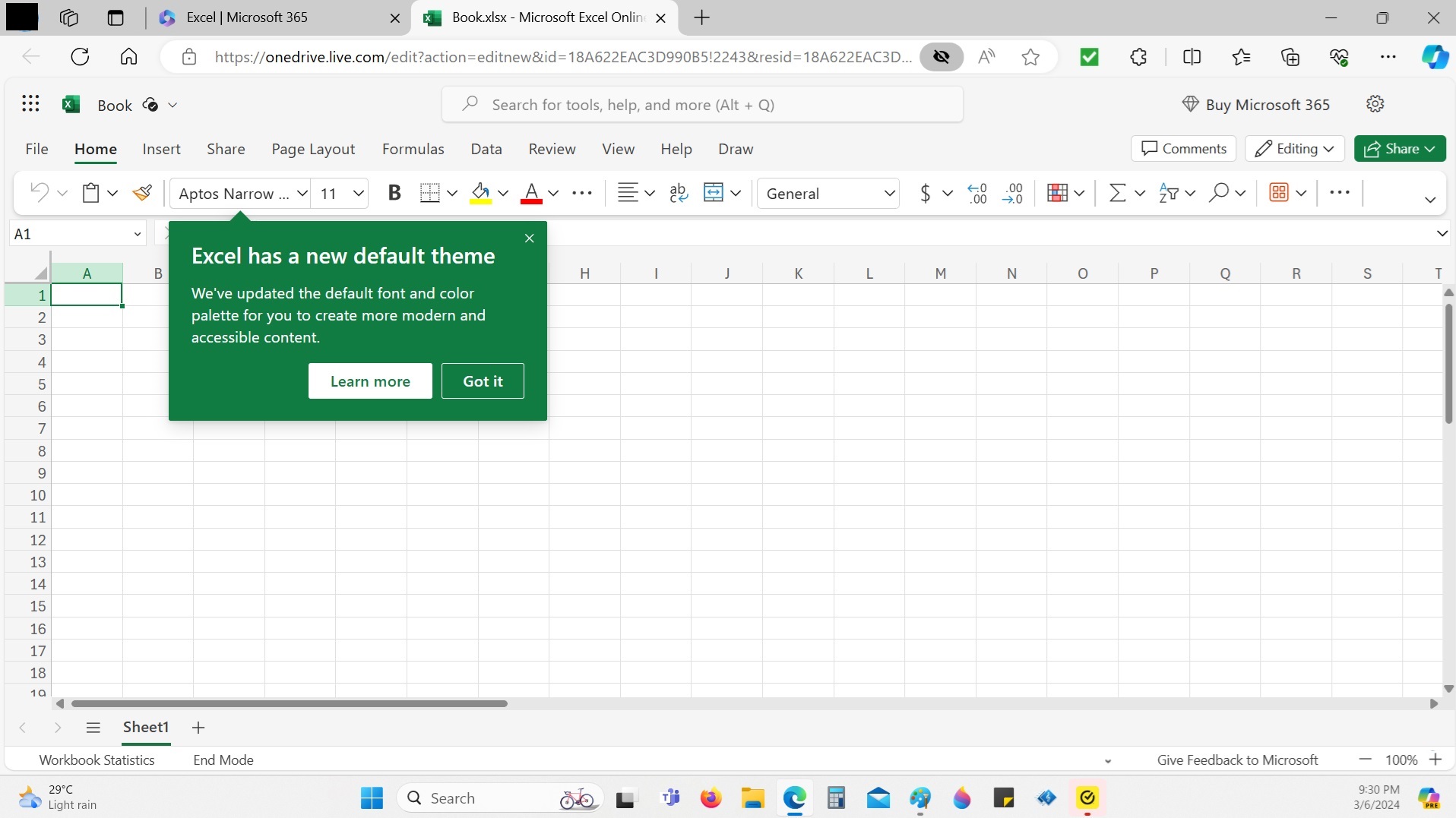
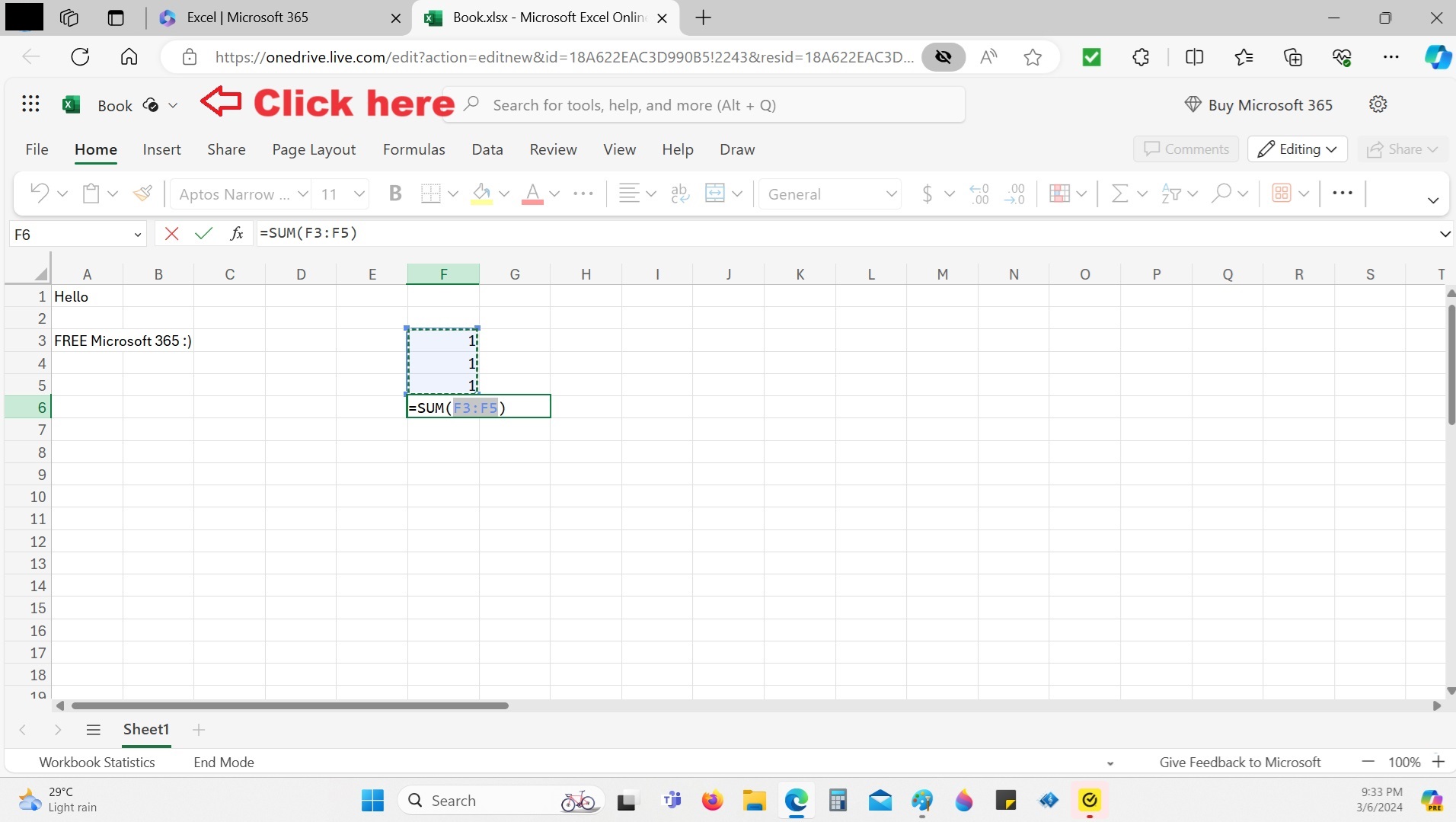
As you can observe below, the file will be saved to One Drive:
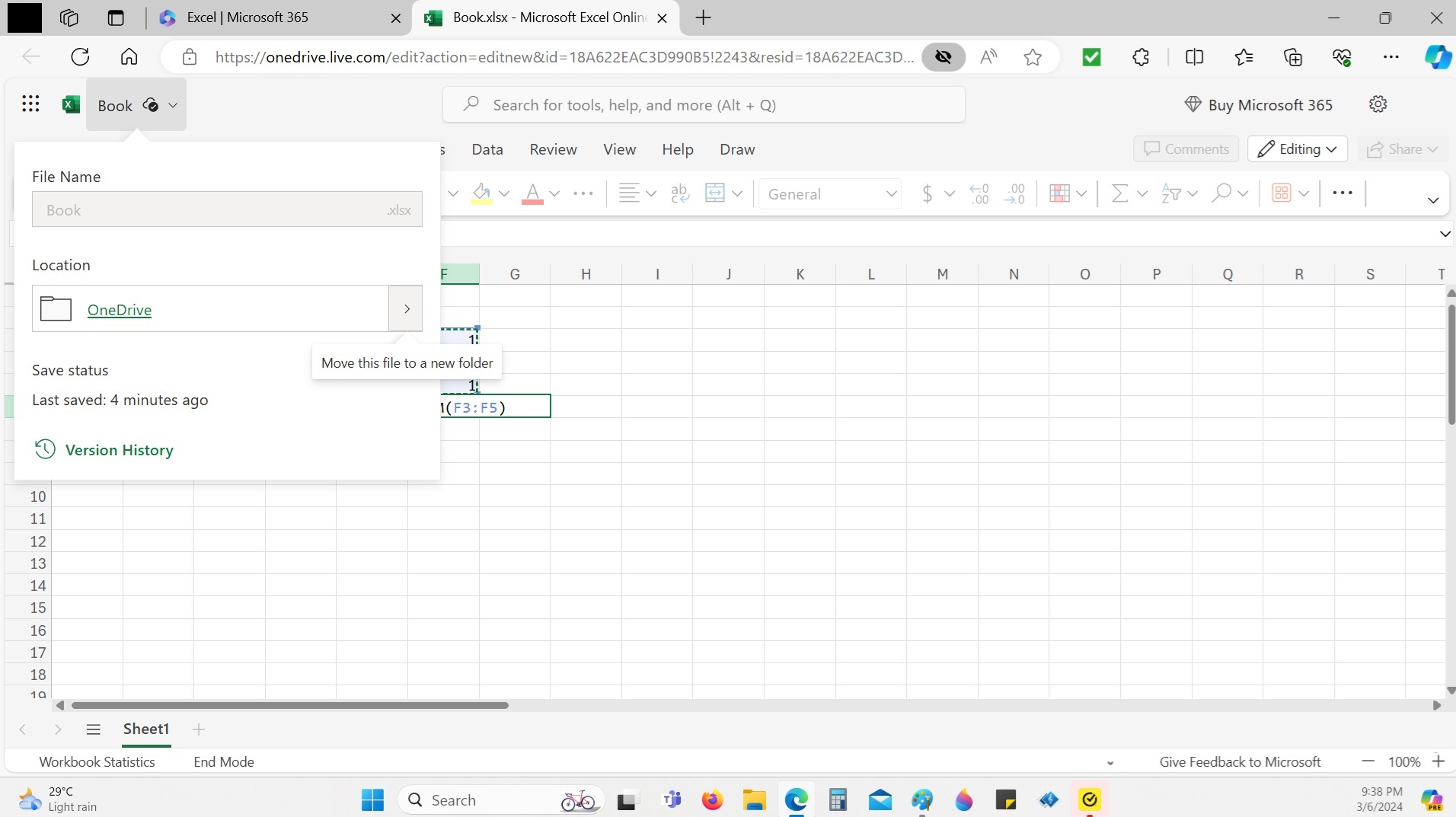
You can then even create a New Folder
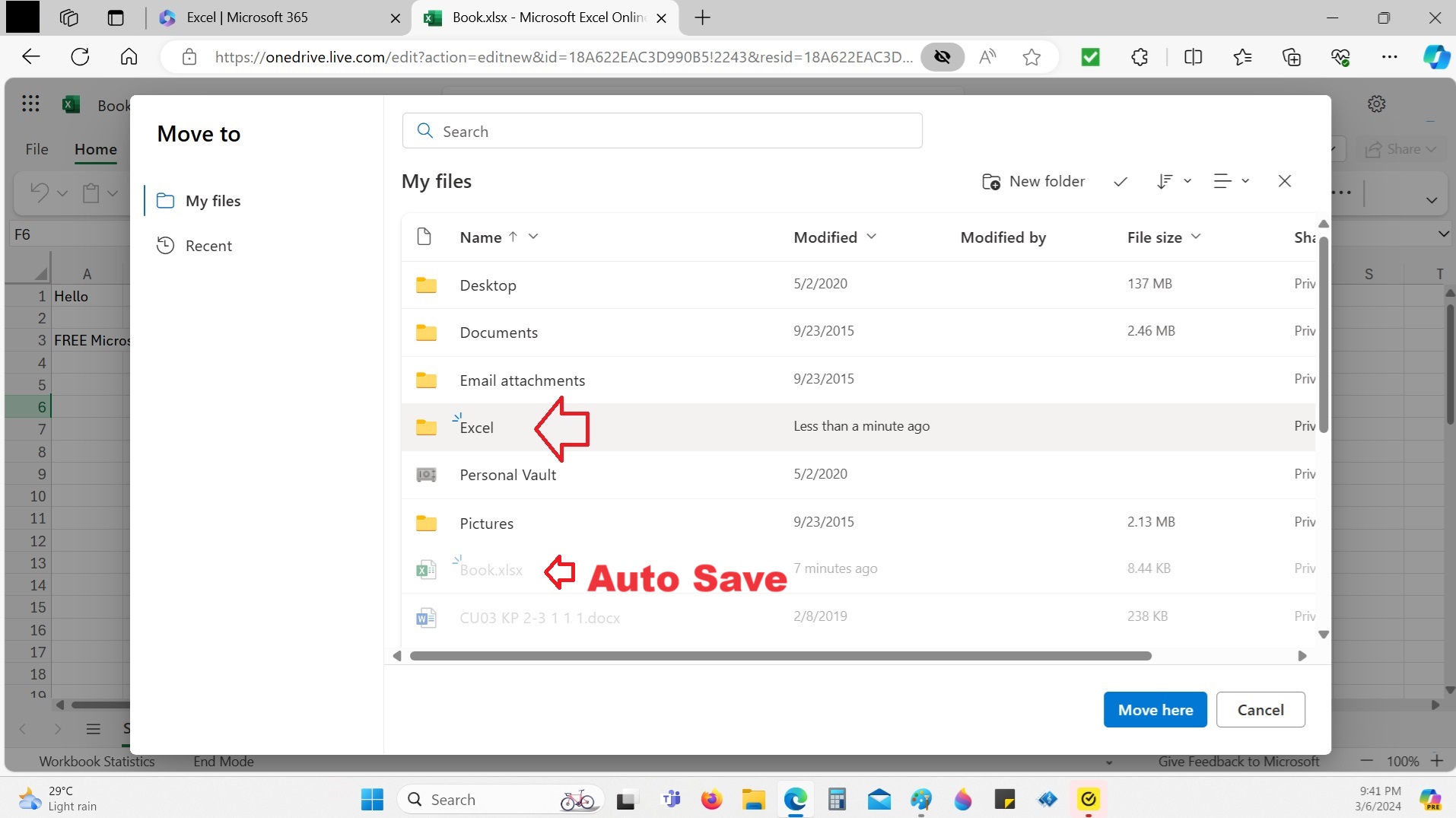
However, the file is called “Book” and I cannot seem to rename it or save to my computer.
Step 7 – Rename the file and download file to computer
I then exited Microsoft 365 and renter again by repeating Steps 1 to 6 again and Click on “File” and selected Book from One Drive:
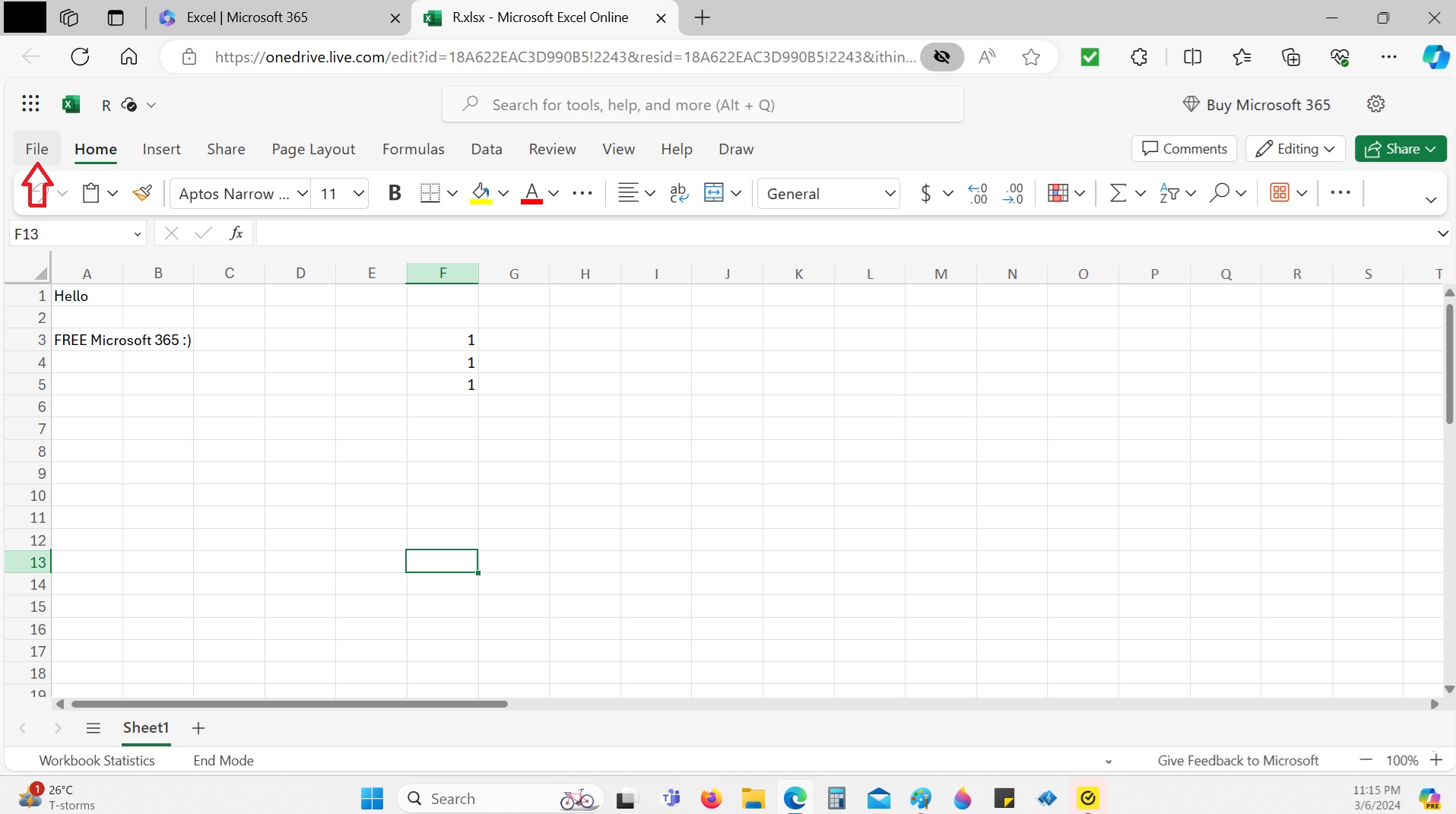
This time when I click on File, I can RENAME and even download it to my computer, see below arrows:
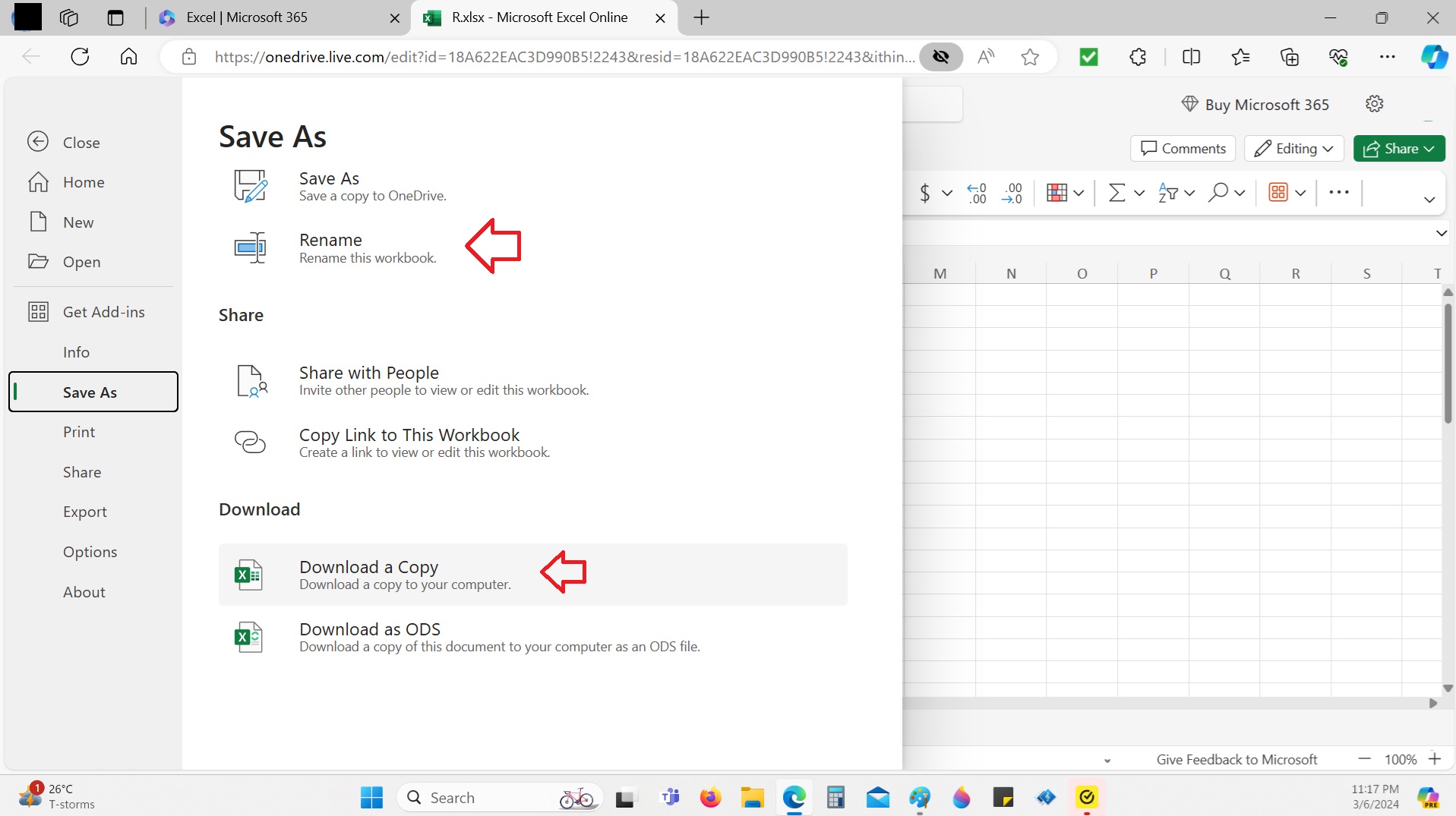
However, I noticed that the file downloaded was saved under “R” (maybe I accidentally click on Rename and only somehow deleted the “ename”, I can’t remember) but the point is we can save the file in our computer hard drive and not at Cloud.
See below image, I managed to open the “R” Excel file which was downloaded to my computer at Microsoft 365:

Apache Open Office
I shown you earlier, you can download Open Office for FREE.
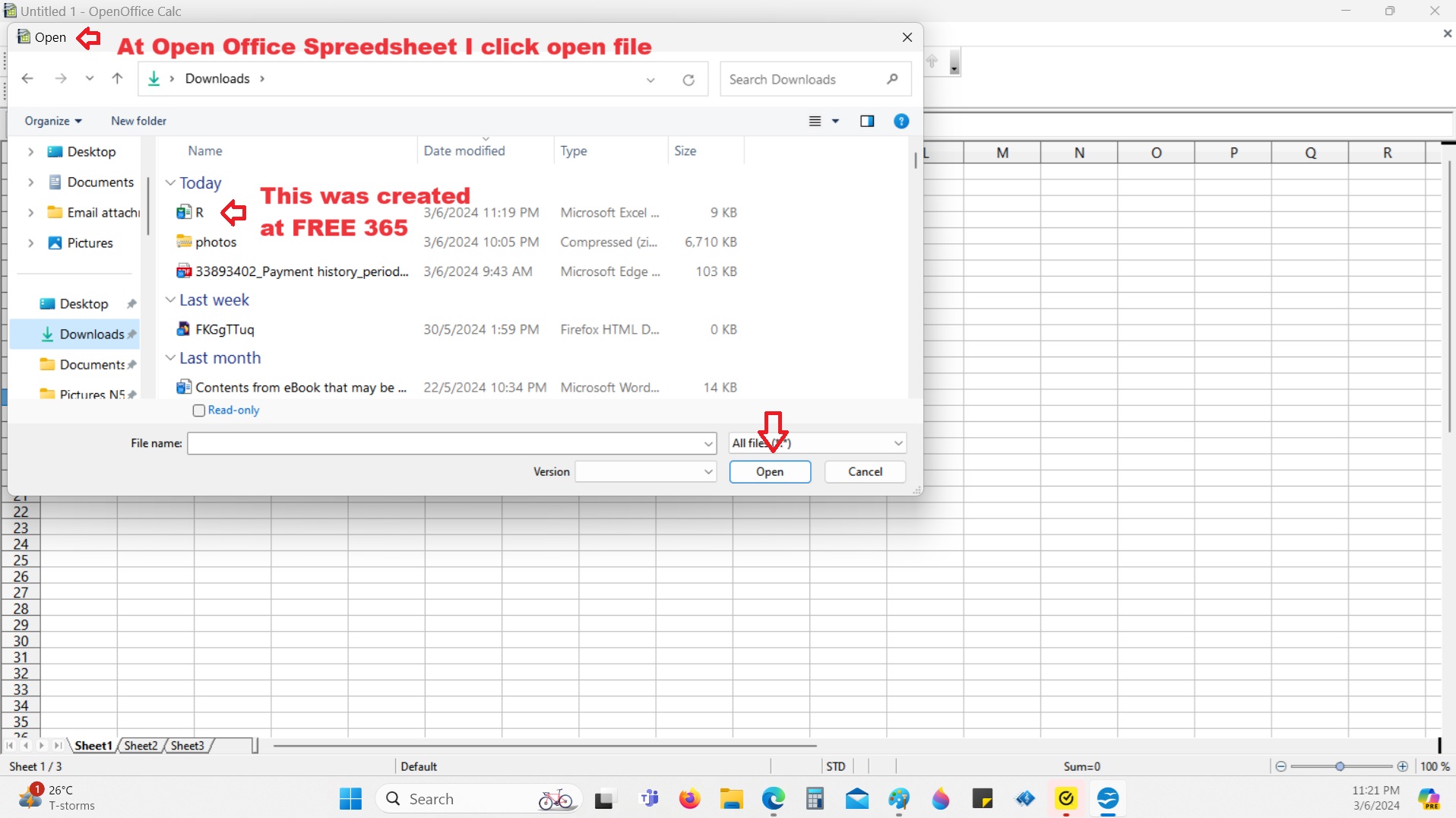
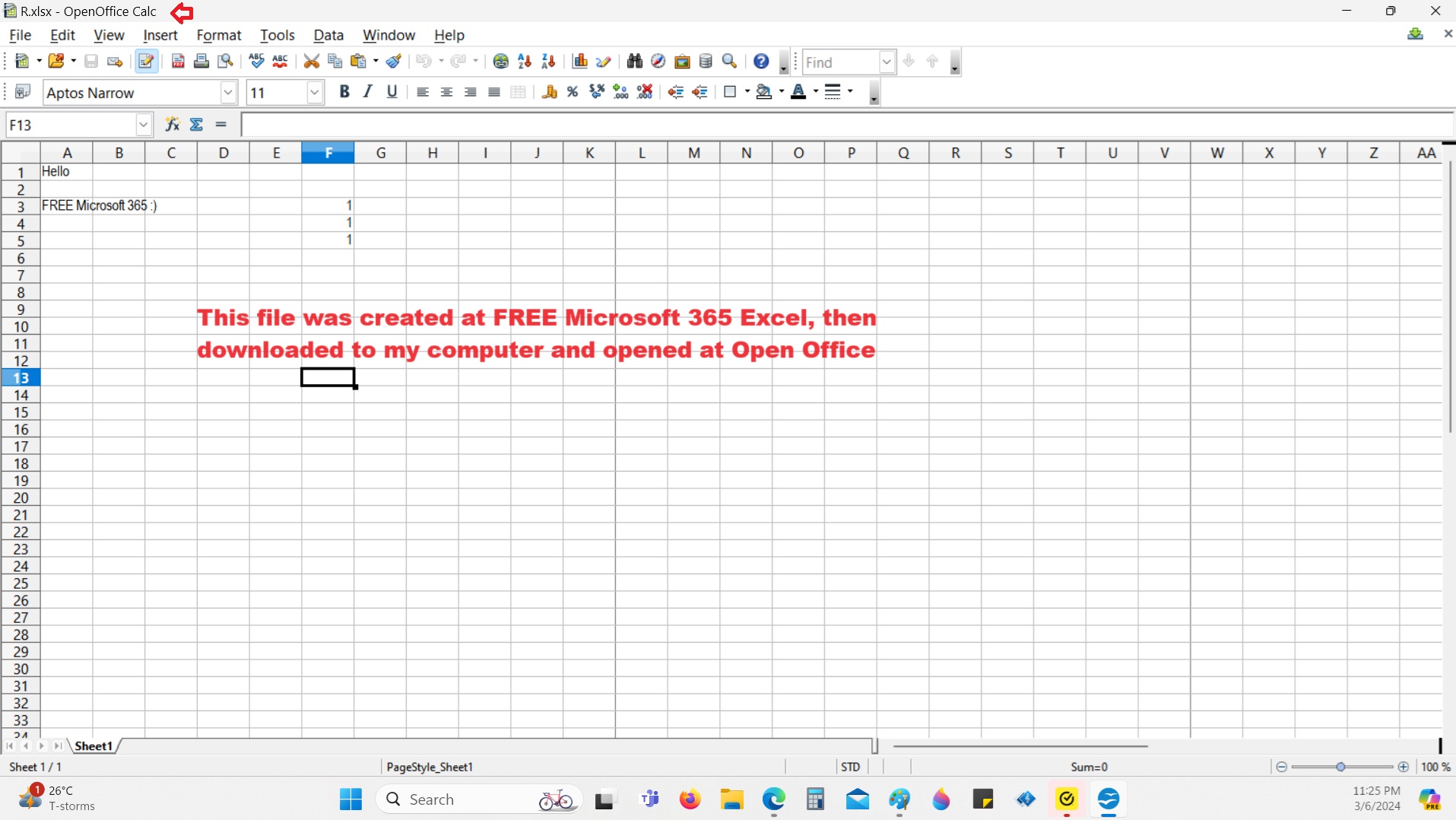
Opening a file at Open Office which was created by Microsoft 365 and downloaded to my computer.
At the FREE Open Office, you can even open a file created by Microsoft 365.
Below I am using Apache Open Office to open the “R” file which I downloaded (shown in Step 7 above:
Saving a file created by Open Office and then opened at Microsoft 365
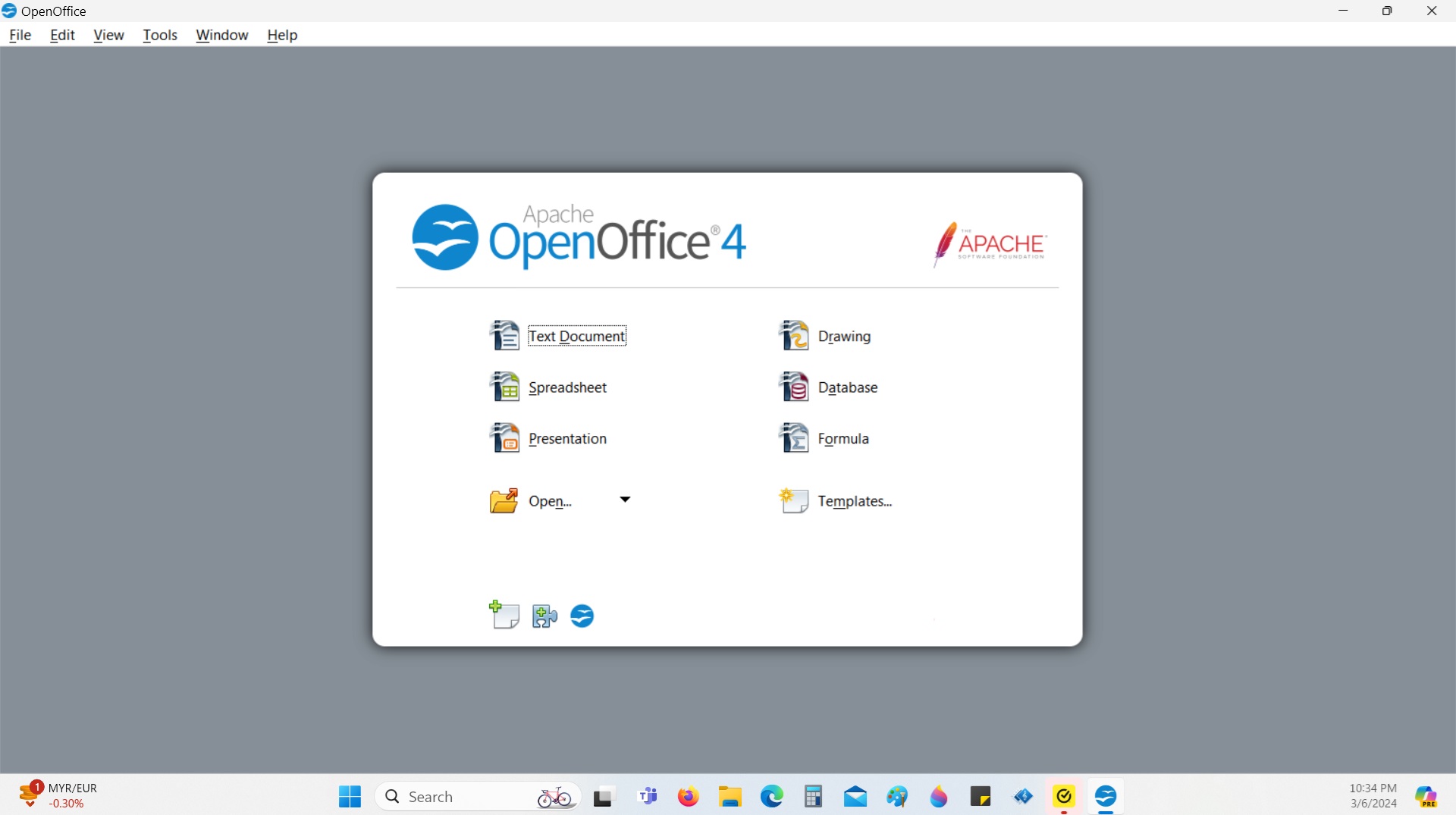
Above click on Spreadsheet and the image below I created a file called “Open Office Try Open With 365”:
Save the file under Windows 97/2000/XP
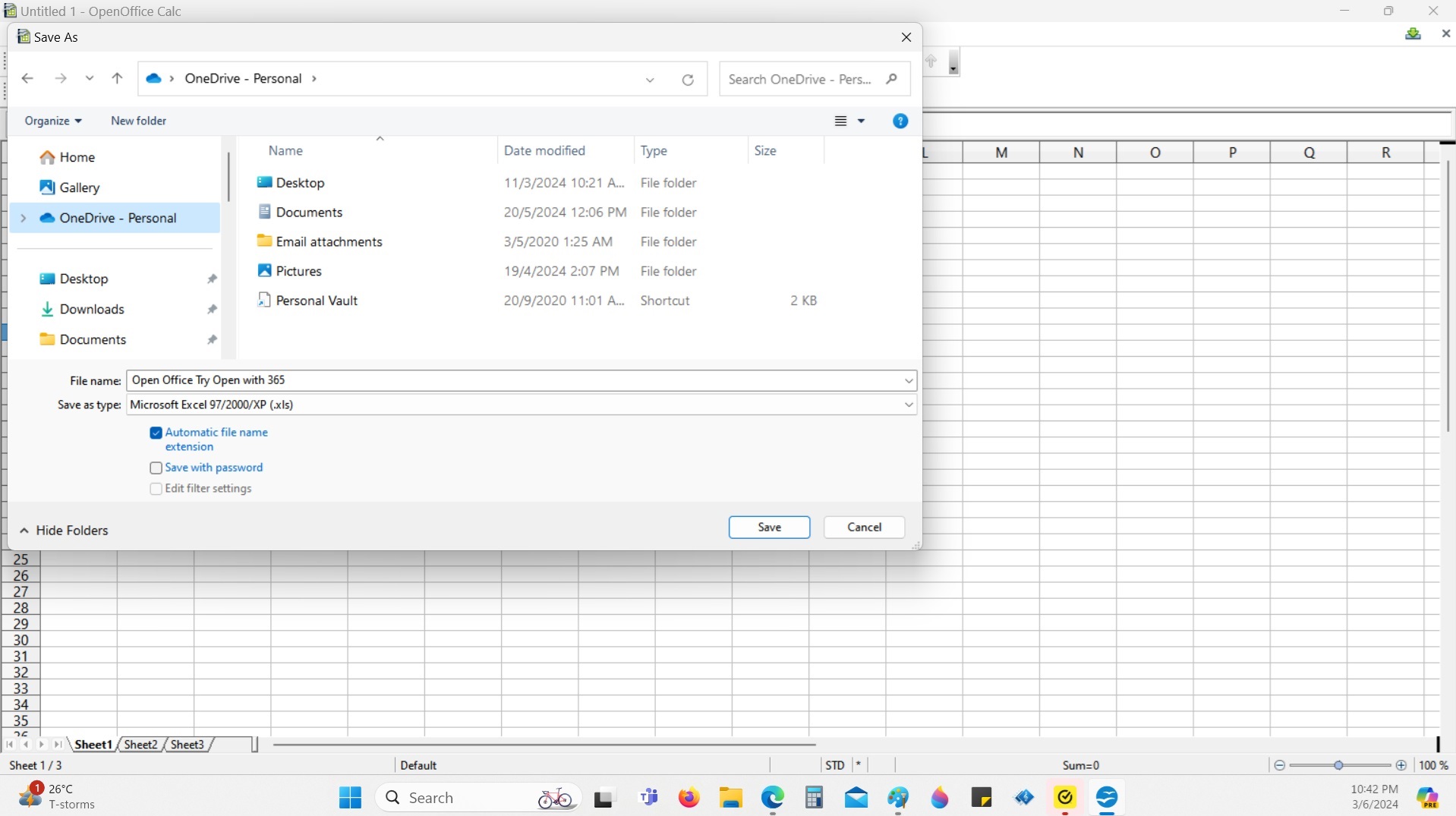
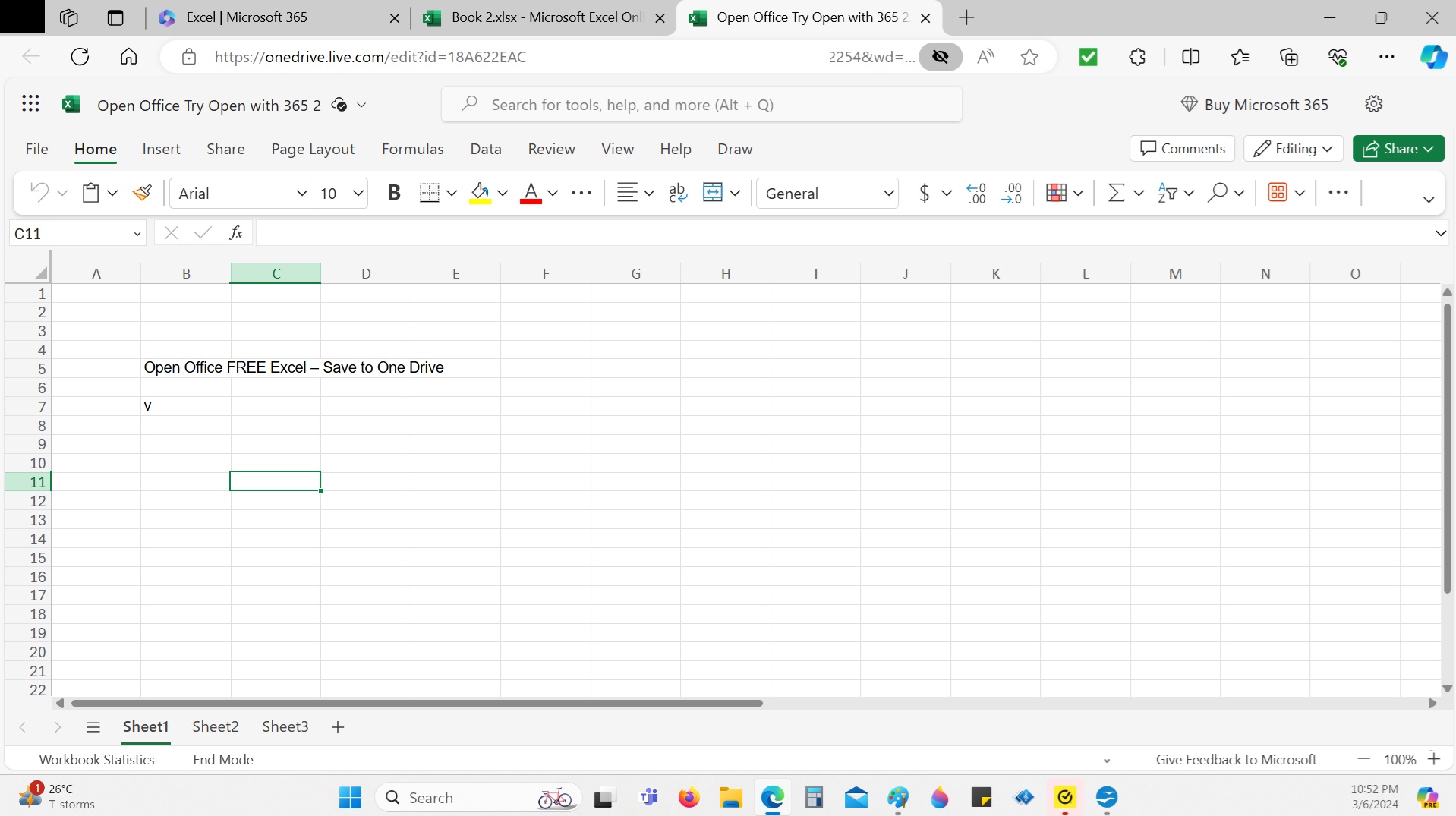
Then I returned to Microsoft 365 by repeating Steps 1 to 6 above. Once I am in Excel, I need to do 2 things to open the Open Office Spreadsheet which I had saved in my computer:
- Firstly, I need to “UPLOAD” the file from my computer to One Drive (Cloud); and
- Once it is uploaded I can then open the file created at Open Office at Microsoft 365.

Below is the file created at Open Office and opened at Microsoft 365 🙂
CONCLUSION
I have been using Open Office for more than a decade and even used it to create Power Point Presentations. It is FREE. I don’t need the FREE Microsoft 365 for my case since I can read any Microsoft Office Word or Excel or Power Point files or create one that can be opened by others who are using Microsoft Office.
Some of you may prefer to use the FREE Microsoft 365 and in this article I have shown you that you do not need to worry about your One Drive Storage space (default 5GB) as you can save the files created at the FREE Microsoft 365 into your computer.
Also in this article I have shown you that you can open an Excel (.xls) file at Open Office and vice-versa.
 GenX GenY GenZ